CQB Hell Mobile Controls
Touch layout tips for tight PvE maps when you play CQB Hell on phones or tablets.
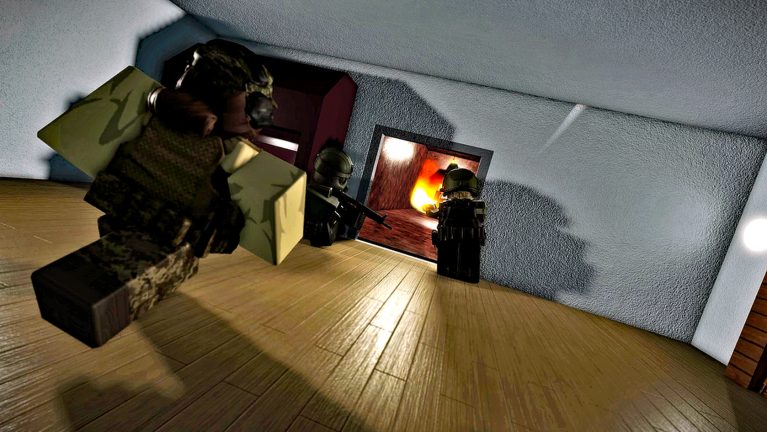
Mobile is a first-class way to play CQB Hell on Roblox. Touch screens trade mouse precision for always-available sessions, so your layout, thumb posture, and UI decluttering decide whether aggressive AI overwhelms you in the first doorway. This guide explains practical Mobile habits for Killart Studios’ PvE CQB shooter and links to sibling pages for PC Controls and Xbox Controls. Start from the Controls Hub if you need the shared checklist.
CQB Hell released March 14, 2025 with online multiplayer sessions, random maps, sandbox weapons, grenades, medkits, bosses such as Allik, and a shooting range that includes PVP. Official access stays on Roblox Place 103490024394750. Mobile UI scales differently on phones versus tablets—expect to nudge button positions after the first launch.
Touch layout priorities
Roblox mobile shooters typically expose:
- A left virtual joystick for movement
- A right look / drag zone for camera
- On-screen fire, ADS, jump, reload, and sprint buttons
- Extra slots for weapons, grenades, and medkits
Your job is to keep the fire button reachable without covering the center of the screen where enemies appear. Many players shift shoot and ADS slightly lower so thumbs do not hide doorframes. If the game offers a custom HUD editor, save a CQB profile with larger hit targets for reload and heal.
Thumb technique for close quarters
- Anchor, then adjust. Plant your left thumb for strafe micro-moves; use short right-thumb flicks to check corners instead of spinning the whole camera.
- Fire with intent. Tap or controlled hold depending on the weapon’s feel. Sandbox guns shown in community videos—Musket, D-44 Carbine, G19B—each ask for different cadence. Learn that cadence in the range without inventing numeric stats.
- Reload behind cover. Mobile reload buttons are easy to miss under pressure. Practice finding them without looking down at your hands.
- Utility without panic. Put grenades and medkits on opposite sides of the HUD if possible so a heal never becomes an accidental throw into your own feet.
Tablets give more visual space; phones demand stricter decluttering. Hide unused emote or social buttons during serious runs.
Gyro and assist options
If your device and Roblox settings allow gyro assist, use it for fine vertical corrections while thumbs handle big turns. Keep gyro strength modest—CQB hallways amplify over-correction. Aim assist, when present, helps tracking but will not save a bad peek into stacked AI. Treat assists as training wheels for clean fundamentals, not a substitute.
Disable battery savers that tank frame rate mid-fight. A stable 30+ FPS with readable shadows beats unlocked frames that stutter when grenades explode.
Mobile-specific CQB mistakes
| Mistake | Why it hurts | Better habit |
|---|---|---|
| Thumbs covering mid-screen | You lose sight of aggressive AI | Move fire/ADS lower and outward |
| Constant sprint stick forward | You overpeek every doorway | Pulse the joystick; stop before shots |
| Ignoring auto-rotate / notch UI | Buttons shift under the camera cutout | Lock orientation; test both hands |
| Tiny heal button | You die mid-animation hunting UI | Enlarge medkit hitbox in HUD settings |
| Playing on low brightness | Dark interiors hide enemies | Raise brightness for map readability |
Warm-up routine on Mobile
Spend a few minutes in the shooting range before multiplayer:
- Track a static target while strafing left and right.
- Switch to a secondary weapon and repeat.
- Throw one practice grenade at a marked corner if the range allows.
- Trigger a medkit once so your thumb knows the exact pixel.
- Optionally enter range PVP for chaotic movement, then drop into a normal PvE map.
After warm-up, play one patient session focused on surviving first contact. Boss attempts like Allik deserve a charged device, clear HUD, and zero notification spam.
Cross-platform account tips
Rewards and progress follow your Roblox account. If you sometimes play on PC or Xbox, skim those control guides so you do not carry Mobile-only assumptions into mouse or stick sessions. Promo codes—when Killart publishes any—are redeemed in-game; see the Codes Hub for the current honest status (no confirmed active codes as of research) and How to Redeem Codes for UI steps. New players should also read Getting Started.
Mobile troubleshooting
- Buttons missing after update: Reset HUD to default, then re-apply your CQB layout.
- Look drag feels sticky: Lower camera sensitivity; clean the screen; disable thick cases that foul edge swipes.
- Accidental chat open: Lock chat behind an extra tap if the client allows.
- Overheating: Lower graphics slightly; heat causes thermal throttling that feels like input lag.
Mobile can clear the same random maps and bosses as any other platform when your thumbs know the HUD cold. Keep the Controls Hub bookmarked, compare notes with PC and Xbox siblings, and rebuild muscle memory whenever Killart ships a UI tweak in Updates.
Frequently Asked Questions
Quick answers to the most common CQB Hell questions.
Can I finish CQB Hell content on Mobile?
Yes. CQB Hell supports Mobile online sessions. Success depends on HUD setup, thumb discipline, and range warm-ups more than platform prestige.
Should I enable gyro for CQB?
If available, use light gyro for fine aim corrections. Keep strength low so hallway tracking stays stable.
How do I stop missing the medkit button?
Enlarge or reposition the heal control in HUD settings and practice one intentional medkit use every warm-up.
Is Mobile worse for weapons like the Musket or G19B?
Touch aims differently, but those sandbox weapons remain usable. Learn each gun's feel in the range instead of chasing invented stats.
Do Mobile players redeem codes differently?
The redeem feature should still live in the in-game UI. Menus may sit behind compact icons—see How to Redeem Codes for details.
What brightness should I use?
High enough to read dark interiors without washing out muzzle flashes. Readable enemies beat cinematic shadows on phones.